Open it like an app
Install MiniGrove on your device
Once installed, MiniGrove gets its own icon on your phone's home screen or your computer. One tap takes you straight to your projects, with no browser address bar and no URL to look up. No app store needed.
Address https://app.minigrove.io
IPHONE · IPAD · SAFARI
iPhone / iPad
Open the address above in Safari. These screenshots are from iOS 26. On older iOS versions, tap the Share button at the bottom (a square with an upward arrow), then scroll down to Add to Home Screen.
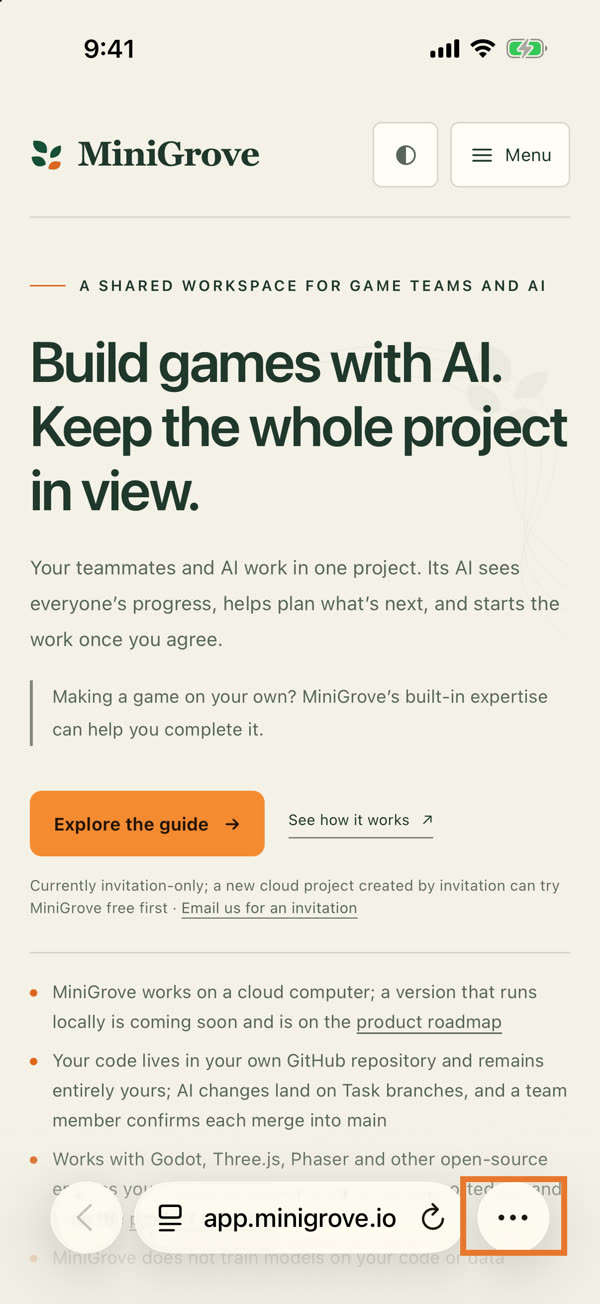
Tap “•••” at the bottom rightwith app.minigrove.io open in Safari.
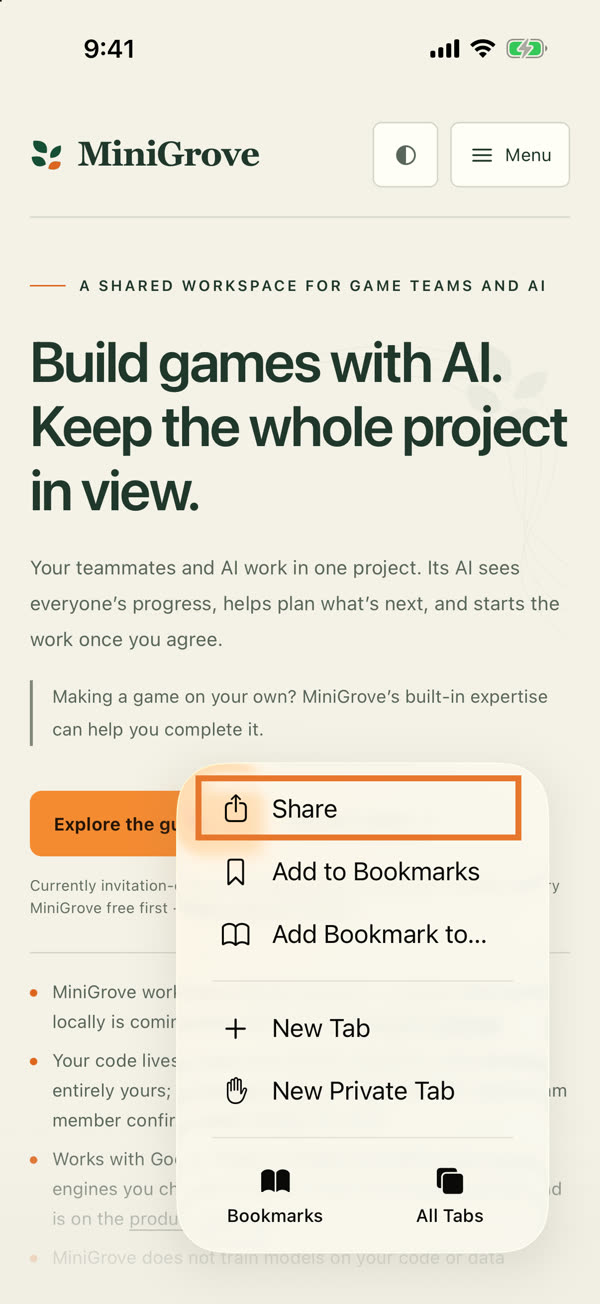
Tap Share
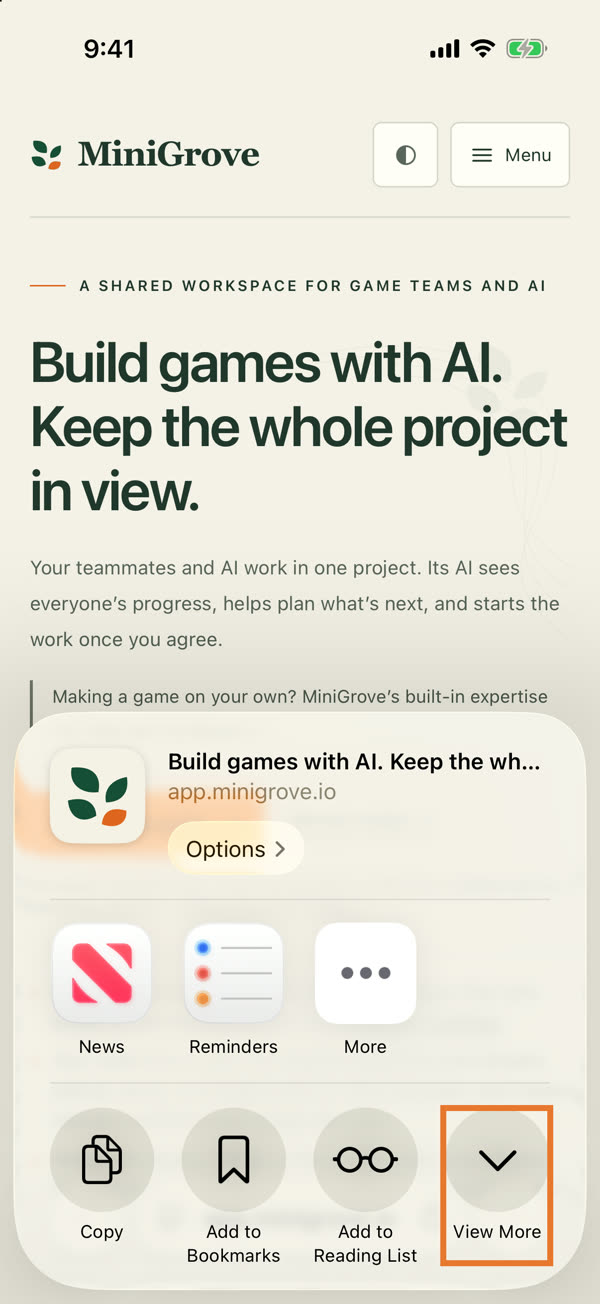
Tap View Morethe down arrow at the bottom right of the share sheet.
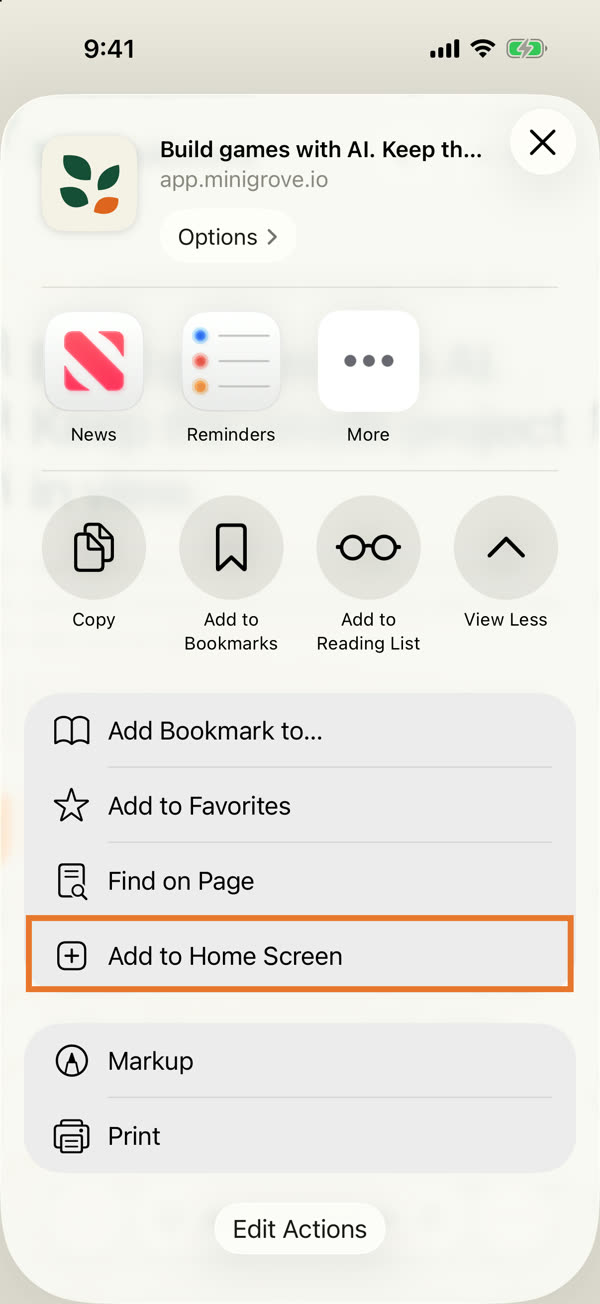
Tap Add to Home Screen
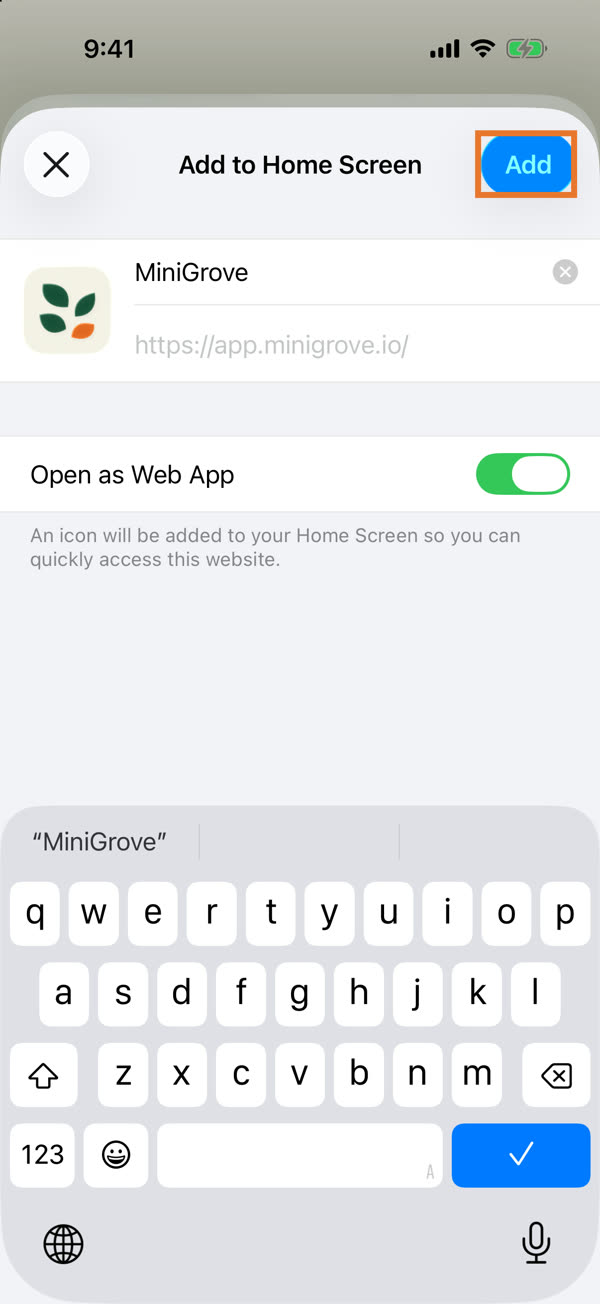
Tap Add at the top rightKeep the name MiniGrove and leave Open as Web App switched on.
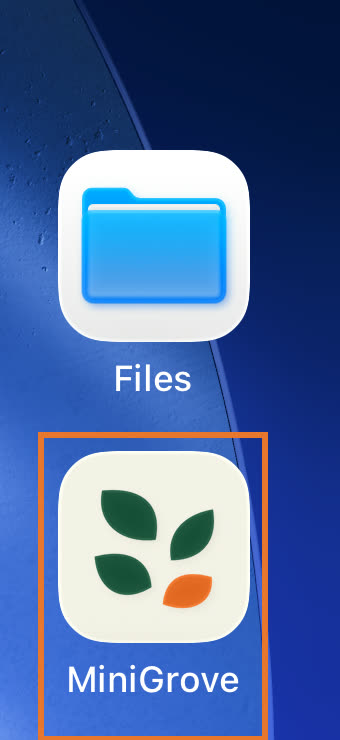
The icon is on your home screenTap it from now on.
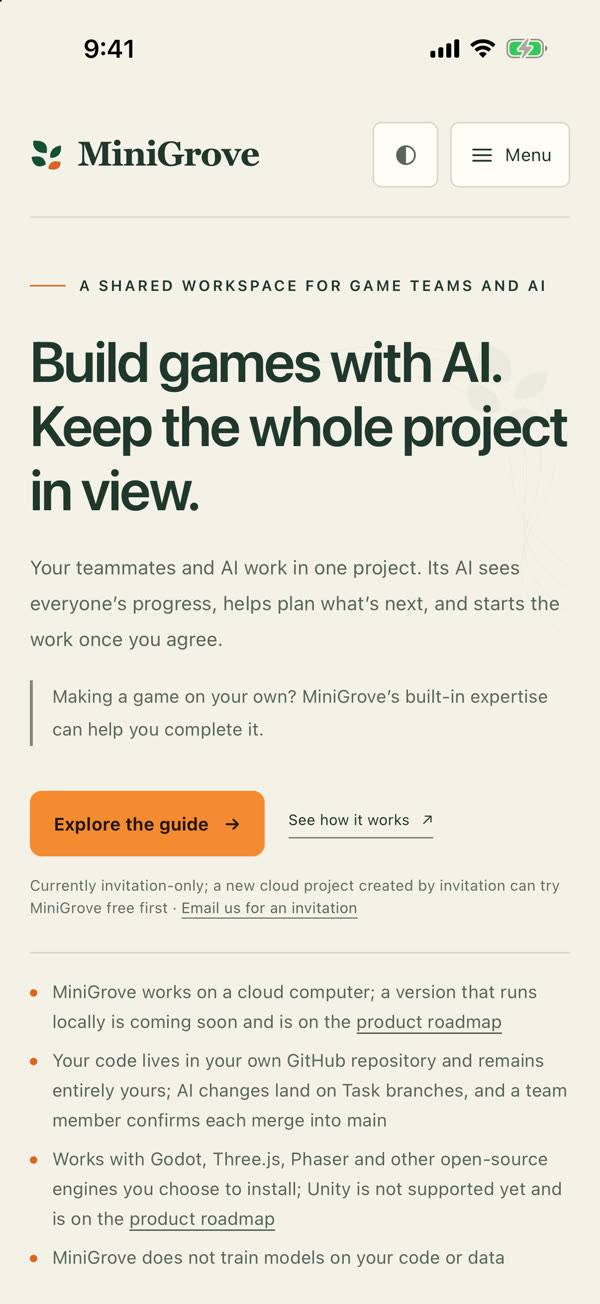
It opens full screenwithout Safari's address bar. If it shows you as signed out, sign in once.
ANDROID · CHROME
Android
Open the address above in Chrome. Other browsers may name the menu item differently, usually “Add to Home screen” or “Install app”.
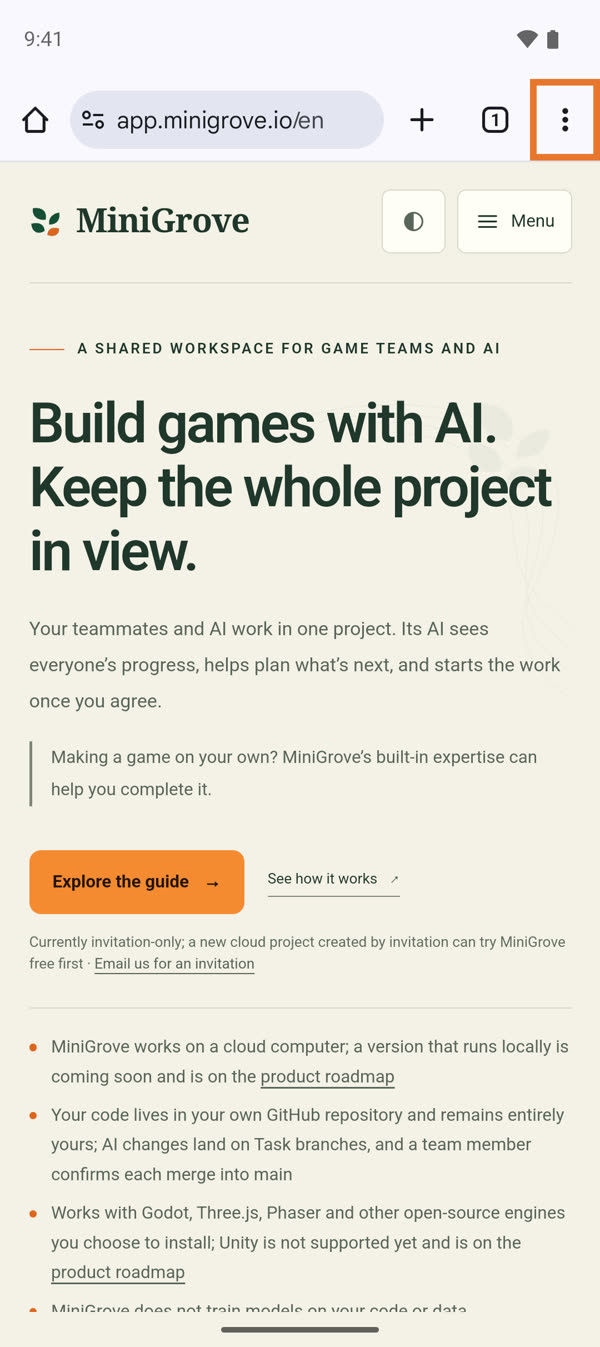
Tap “⋮” at the top right
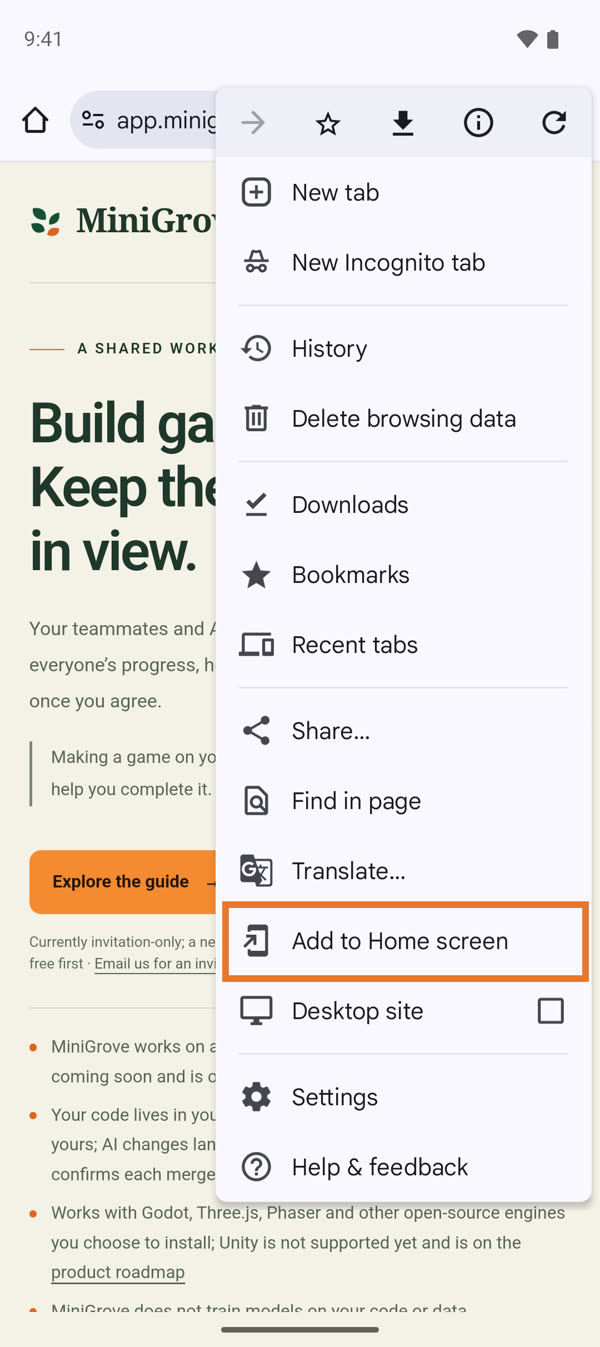
Tap Add to Home screen
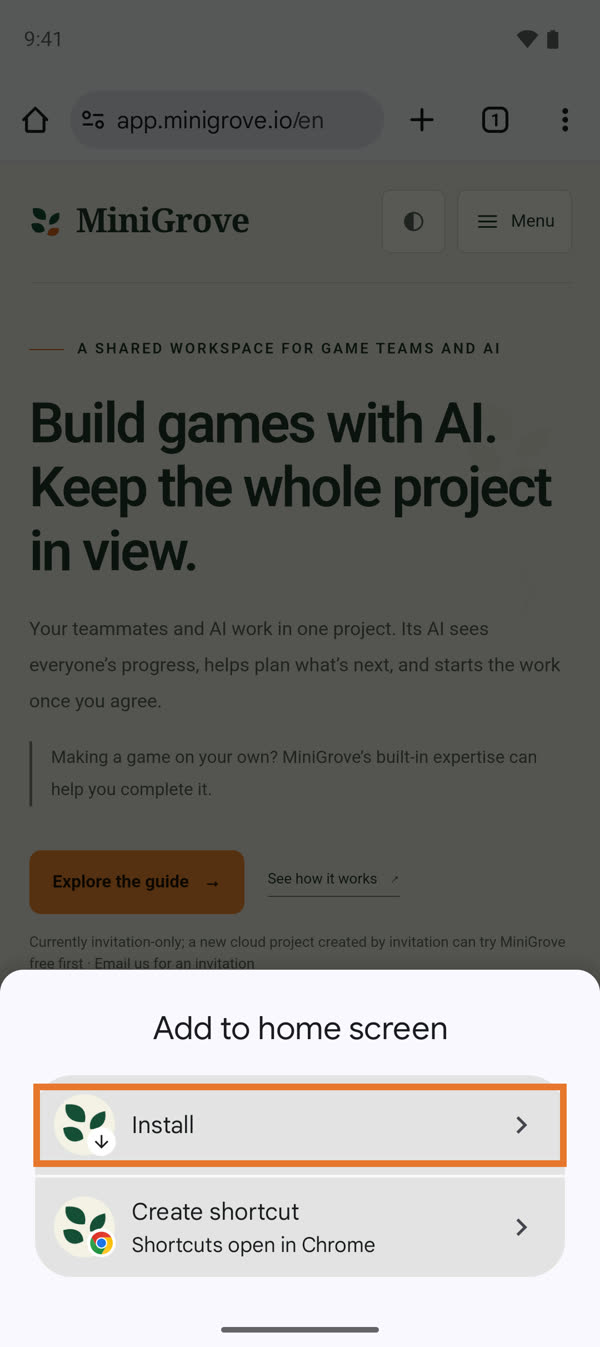
Choose InstallNot Create shortcut: a shortcut still opens inside Chrome.
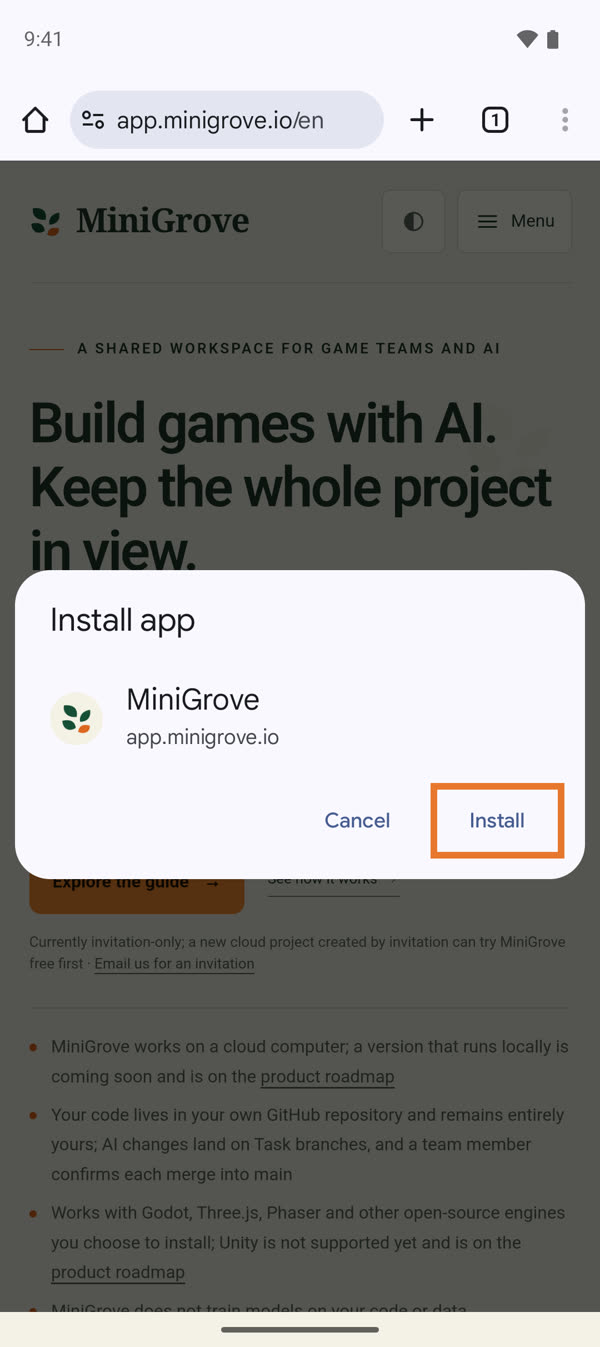
Tap Install againAfter a few seconds the MiniGrove icon appears on your home screen and in your app list.
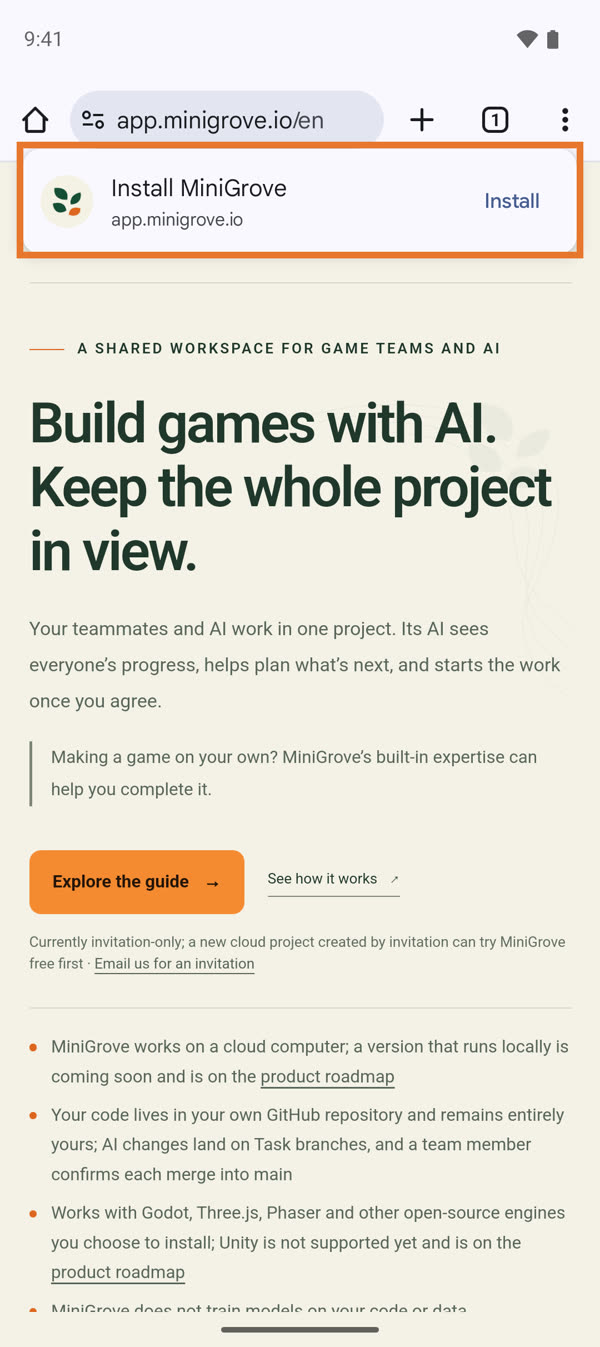
Shortcut: if you've visited before, Chrome may offer Install MiniGrove at the top of the page. Tapping Install there does the same thing as the four steps above.
No icon showed up? Some phones (Xiaomi, Huawei, OPPO, vivo and others) block home-screen shortcuts by default. Look in Settings → Apps → Chrome → Permissions, allow home-screen shortcuts, then install again.
MAC · WINDOWS · CHROME · EDGE
Computer (Chrome / Edge)
Once installed, MiniGrove opens in its own window and shows up in your Dock, Launchpad or Start menu.

- Open app.minigrove.io in Chrome or Edge.
- Click the install icon on the right of the address bar (a monitor with a down arrow, outlined above).
- Click Install in the dialog. MiniGrove opens right away in its own window.
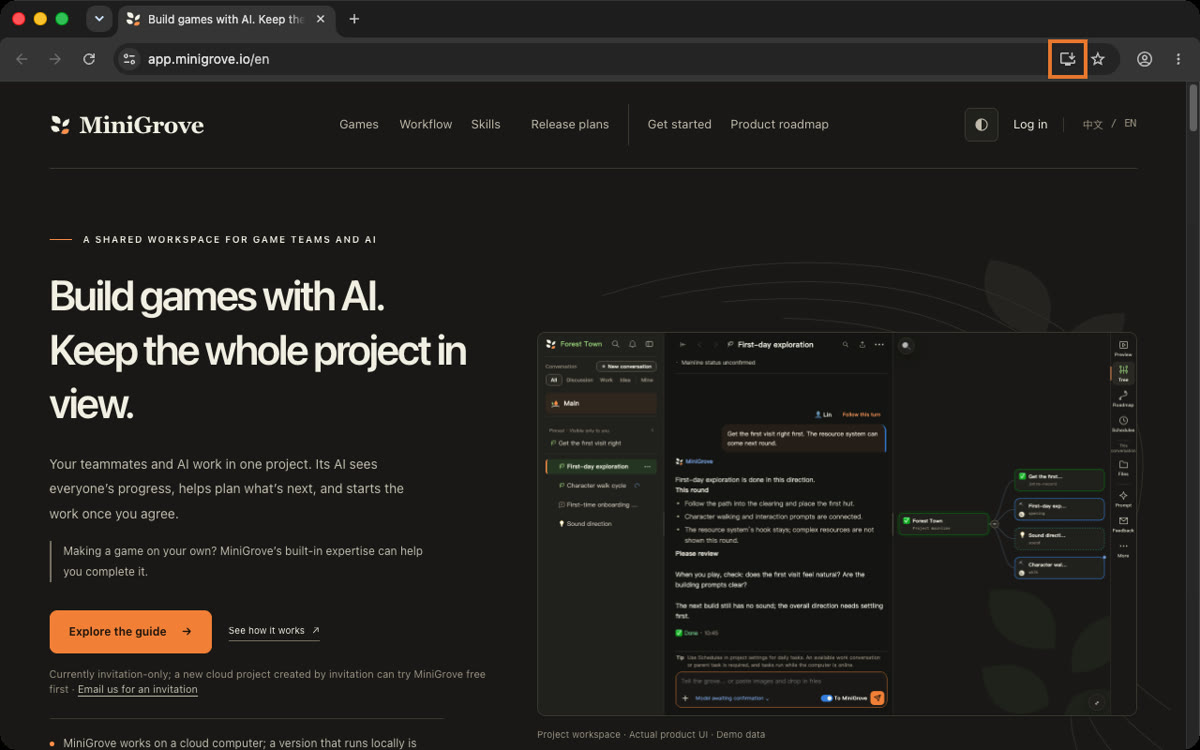
No install icon in the address bar? Chrome: “⋮” at the top right → Cast, save, and share → Install page as app… Edge: “…” at the top right → Apps → Install this site as an app.
Questions
After installing
- Do I still need to be online?
- Yes. Projects, conversations and AI progress all come live from the cloud, so MiniGrove won't open without a connection.
- It says I'm signed out.
- The installed app and your browser may keep separate sign-ins. Sign in once from the icon and it will remember you.
- Will I get push notifications?
- Not yet. Open MiniGrove to see new messages.
- Is this MiniGrove Desktop?
- No. This installs a shortcut to MiniGrove on the web; it doesn't run anything on your computer.
- How do I remove it?
- On a phone, long-press the icon and choose Remove App or Uninstall. On a computer, open the menu at the top right of the MiniGrove window and choose Uninstall MiniGrove. Removing the icon doesn't affect your projects or account.